


As we continue exploring Nutanix Kubernetes Platform (NKP) alongside Nutanix AI (NAI), we’re encountering new technologies and learning opportunities along the way.
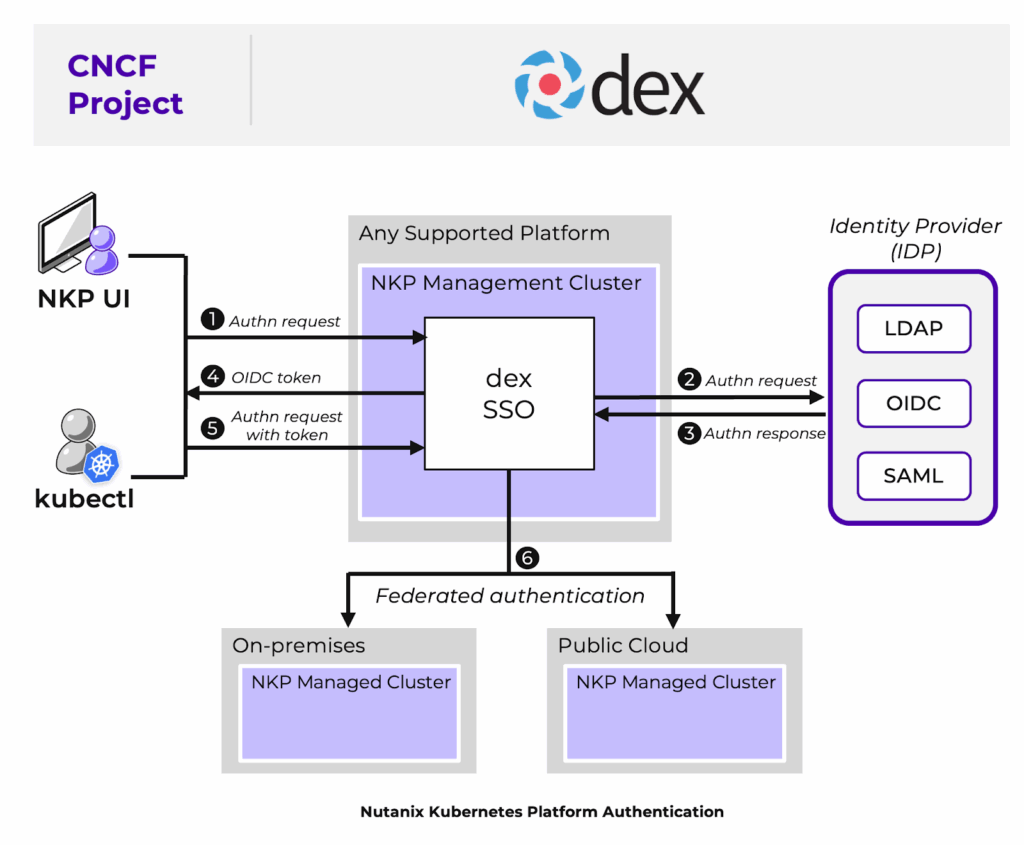
Recently, we deployed NKP through the Nutanix Marketplace and started implementing Role-Based Access Control (RBAC) using Active Directory (AD) as our identity provider. NKP leverages Dex, an open-source federated OpenID Connect (OIDC) provider that acts as an intermediary between applications and upstream identity providers such as LDAP, Active Directory, and SAML providers.
While the overall configuration process is straightforward, we ran into a small issue during the authentication setup that cost us some troubleshooting time. This article walks through the configuration steps and highlights a subtle detail that can save you from similar headaches.
Accessing the NKP Dashboard
To connect to the NKP Dashboard:
- Log in to Prism Central.
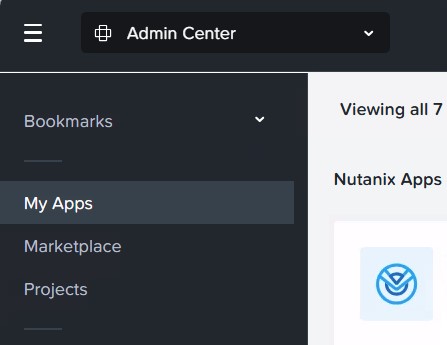
- Navigate to Admin Center and select My Apps.
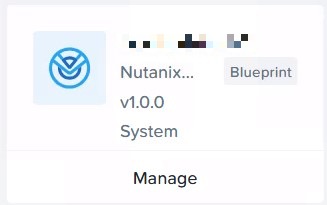
- Select your NKP deployment and click Manage.
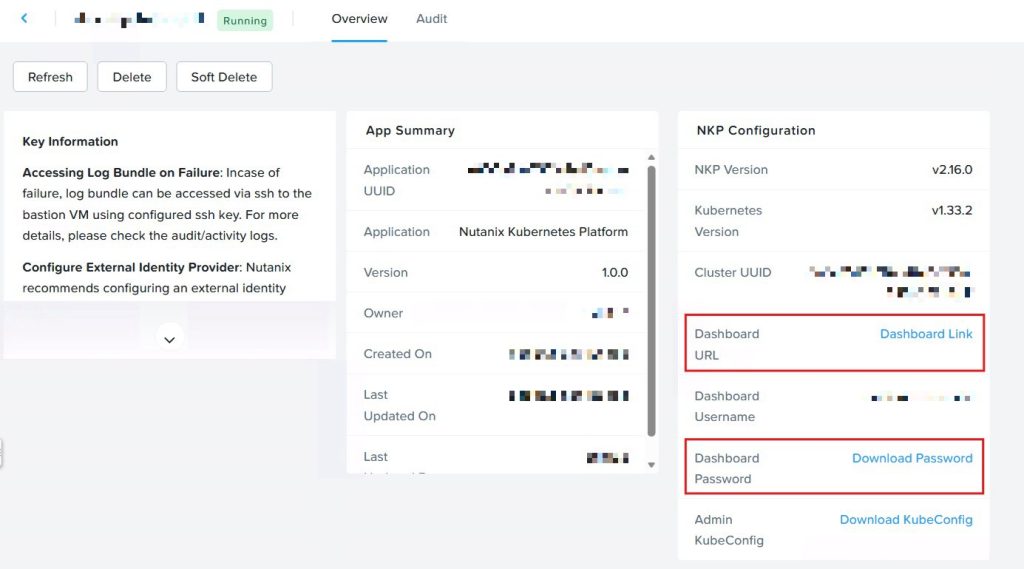
- The application details page will open, displaying:
- The Dashboard Link
- The Dashboard Username
- The Dashboard Password (available for download)
Adding an LDAP Identity Provider
After logging in:
- Select LDAP as the identity provider type.
- Login with the local credentials listed and go to Identity Providers.
- In here click on Add Identity Provider

Configure the following settings:
General Settings
| Setting | Description |
|---|---|
| Identity Provider | LDAP |
| Workspace | All Workspaces |
| Name | A descriptive name (for example, your AD domain name) |
| Host | LDAP or Active Directory server hostname or IP address. If using standard LDAP/LDAPS ports (389/636), no port specification is required. |
| Bind DN | Distinguished Name (DN) of the service account used to query Active Directory |
| Bind Password | Password for the service account |
| Insecure No SSL | Enable when using LDAP without SSL/TLS |
| Insecure Skip TLS Verify | Enable when using LDAPS without certificate validation |
User Search Settings
| Setting | Description |
| User Search Base DN | Distinguished Name of the OU containing user accounts |
| User Search Username | Attribute used for username matching |
| User Search Filter (Optional) | LDAP filter used when searching for users |
| User Search Scope | Determines whether searches include sub-OUs or only the specified level |
| User Search ID Attribute | Attribute used for the user’s name claim |
| User Search E-Mail | Attribute used for the email claim |
| User Search Name | Attribute mapped to the user’s display name |
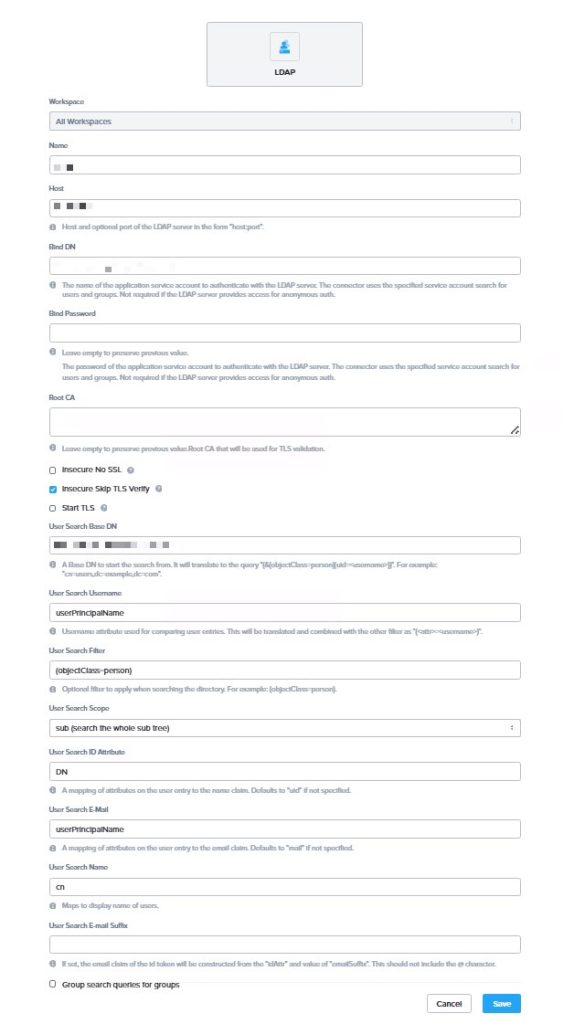
The Unexpected Attribute Case-Sensitivity Issue
At first glance, the configuration appears straightforward. However, one subtle detail caused authentication failures during our deployment.
The issue was related to LDAP attribute names and their casing.
For our environment, privileged accounts do not have an email address assigned, so we chose to use the userPrincipalName attribute for both the username and email mappings.
When retrieving user properties through PowerShell, the attribute appears as: UserPrincipalName

However, when viewing the same attribute through the Attribute Editor in Active Directory Users and Computers (ADUC), it is displayed as:But if you check the same attribute via the Attribute Editor it returns userPrincipalName.
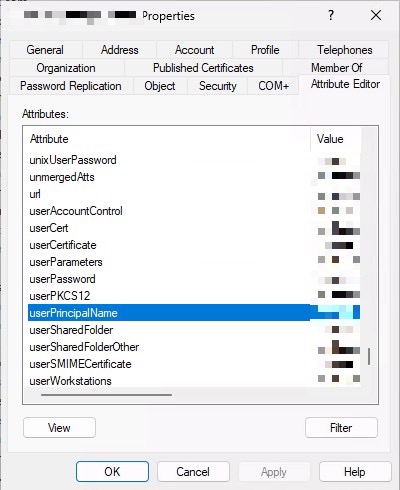
Although both references point to the same Active Directory attribute, NKP/Dex expects the attribute name exactly as it is defined in the LDAP schema. Using the PowerShell version resulted in authentication issues, while using the attribute name directly from the ADUC Attribute Editor worked correctly.
Lesson Learned
When configuring LDAP authentication in NKP, always verify and copy attribute names directly from the Attribute Editor in Active Directory Users and Computers rather than relying on PowerShell output.
A small difference in attribute casing can lead to authentication failures that are difficult to diagnose.
Takeaway: Always use the exact LDAP attribute names as shown in the Active Directory Attribute Editor when configuring Dex-based authentication providers in NKP.